DSS Service Portal
Students - Access DSS Service Portal
Instructor - Access DSS Service Portal
What is it?
Beginning Fall 2026, students and instructors will have access to the new DSS Service Portal. Students will be able access the portal to send their Authorized Academic Accommodation (AAA) letters directly to their instructors. Students with testing accommodations will also be able to schedule their tests at the DSS Test Proctoring Office through the portal as well!
Check out our guides for students and instructors below. Video Guides are also available.
For Students
Students that have accommodations that are approved through DSS will be able to send their Authorized Academic Accommodation (AAA) Letter through the DSS Service Portal.
- Access the DSS Service Portal for Students
- Click on Send Accommodation Letters
- Click on Accommodations at the top of the page
- Log into your SWC account when prompted
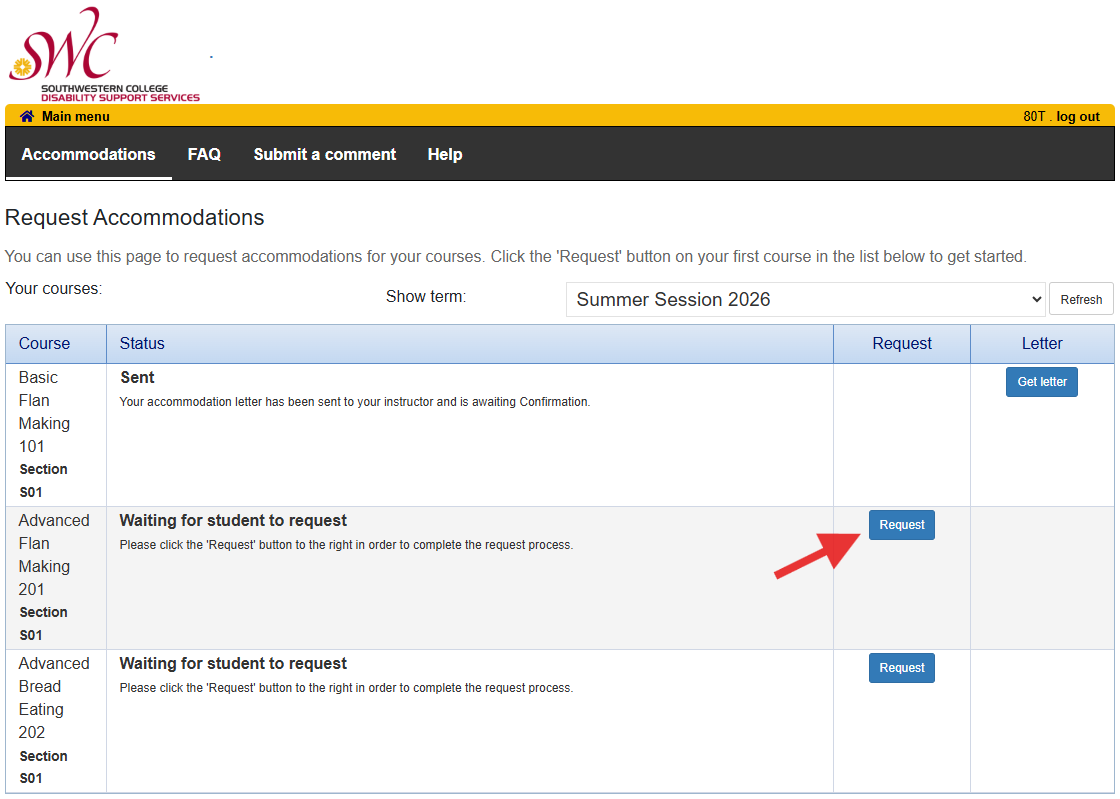
- Find the class in which you are looking to send your AAA letter for and click on the
Request button.
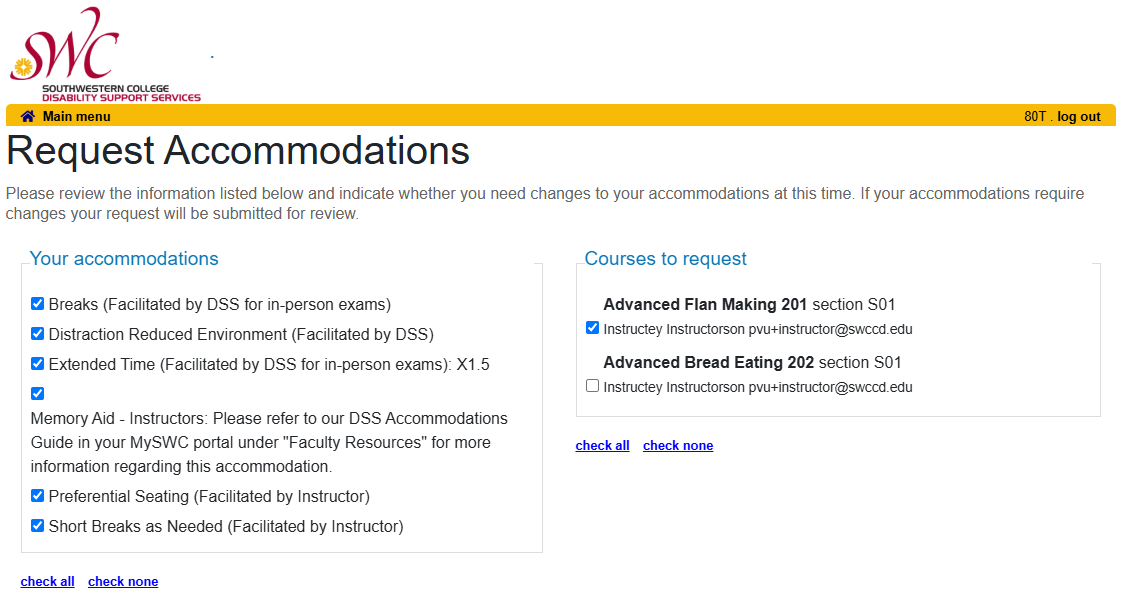
- Select which accommodations you wish to request for your class. If you wish to request
the same set of accommodation for other classes, you can select multiple classes to
send your AAA letter to at the same time.
- In the following section, please click on the “My Accommodation(s) are correct as
listed on this page.” If you need any modifications to your accommodations, please
make an appointment with your DSS counselor. If you end up selecting one of the other options, it will delay your AAA letter request.

- Read the terms and conditions and click on the “I agree” checkbox. Then press the Submit button.
- Once you submit your request, your instructor will receive an email notifying them that your AAA letter is available for them to view in the DSS Service Portal.
- We HIGHLY encourage you to meet with your instructors after you send your AAA letter. It is very important for you and your instructor to discuss how accommodations will apply in the classroom and your coursework.
If you are approved for testing accommodations and plan to take your tests at the DSS Test Proctoring Office, you can schedule your tests using the DSS Service Portal.
- Make sure you have the following information:
- The date and time that your class is taking the test
- How many hours/minutes that the class will be taking the test for
- Note: Tests must be scheduled at least 7 days before your scheduled test date. For Final Exams, exams must be scheduled at least 30 days before your scheduled Final Exam date.
- You must have already sent your accommodation letter for the class already through the portal.
- Access the DSS Service Portal
- Click on Schedule an Upcoming Test
- Log into your SWC account when prompted
- Click on Schedule a test, midterm, or quiz at the top of the page
- If you are looking to schedule a final exam that is scheduled during finals week, click on Schedule a final exam. Check out SWC’s Finals Week Schedule for information about the current semester’s finals week schedule.
- Follow the step-by-step guide to schedule your test.
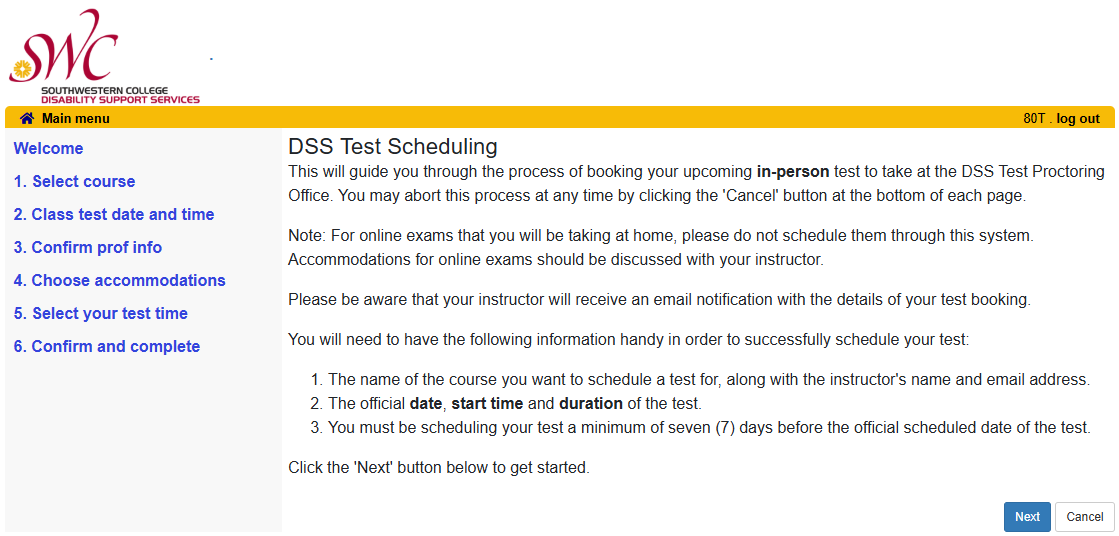
- Once you have scheduled your test, you will receive a confirmation email to your SWC email address. Your instructor will also receive an email six days before the scheduled test date containing instructions on how to provide information about the test to the DSS Test Proctoring Office.
- Make sure you have the following information:
Students can check which upcoming tests that they have scheduled in the DSS Service Portal.
- Access the DSS Service Portal
- Click on Schedule an Upcoming Test
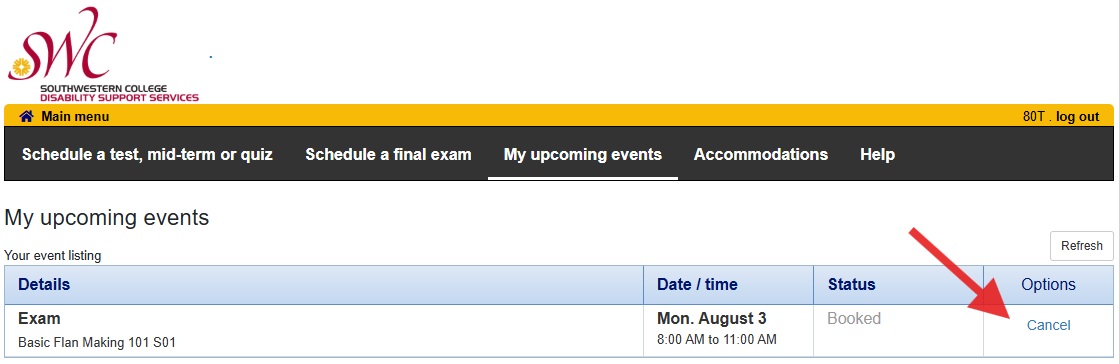
- Click on My Upcoming Events
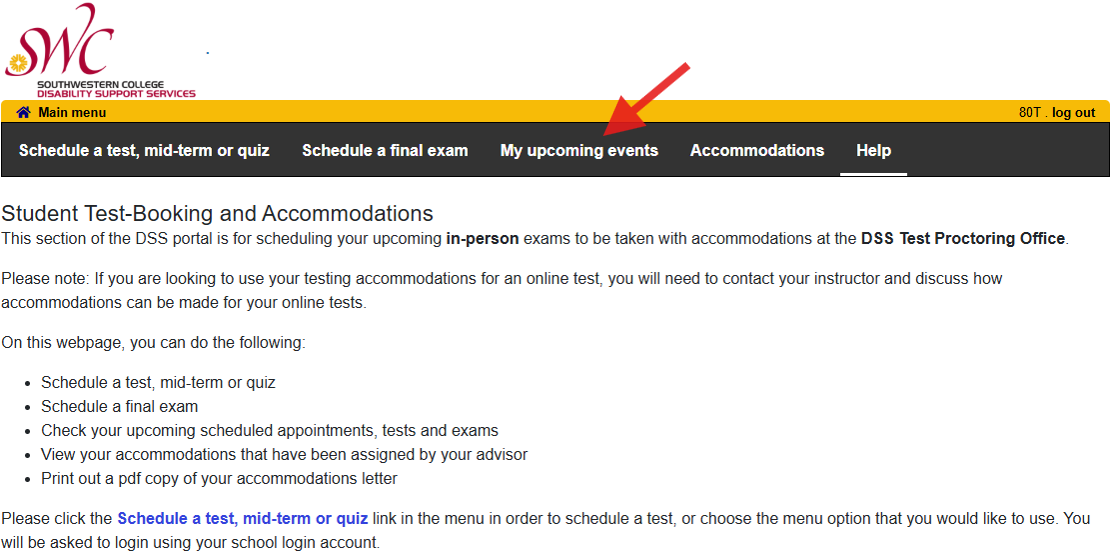
- Here you will find a list of upcoming tests that you have scheduled in our system.
You also are able to cancel upcoming test appointments using the Cancel button listed next to each test.
Send your accommodation letter as soon as possible - The earlier that your accommodation letter is sent to your instructor, the earlier instructors are able to work with you and DSS to ensure we can accommodate you in the classroom.
Schedule tests ahead of time - Some instructors provide test dates for the semester ahead of time in the syllabus or on Canvas. We recommend scheduling those tests in the DSS Service Portal as soon as possible. If your instructor changes the test date, contact the DSS Test Proctoring Office at dssproctor@swccd.edu as early as you can. They can work with you and your instructor to reschedule your test.
Question: I’ve received accommodations in the past, but I portal says to contact you to request accommodations. What do I do?
Answer: Reach out to us via email at dss@swccd.edu. We can check to see if there are any holds on our system that may be preventing you from logging in.
Question: There are two of the same class listed. Which do I send my accommodation letter to?
Answer: Some classes are split into a lecture class and a lab class. For example: Biology 100 might be split into Biology 100 LEC and Biology 100 LAB. If you are looking to request accommodations for both the lecture and lab, send your accommodation letter to both classes. This is especially important if your lecture and lab have different instructors.
Question: When I try to schedule my test, it says there’s no space available. What do I do?
Answer: It may be the case where your test time (including any extended time) may run outside of the DSS Test Proctoring Office’s operation hours. We also recommend checking to make sure you are inputting the correct time. For example, typing in “1:00am” for the test start time, instead of 1:00pm.
You can reach out to them via email at dssproctor@swccd.edu or in-person at the Chula Vista campus in Building 28-102.Question: I’ve scheduled a test at the wrong time/date. What do I do?
Answer: Reach out to the DSS Test Proctoring Office at dssproctor@swccd.edu. They will be able to correct your test date.
For Instructors
Students who are looking to use their accommodations are responsible for making their Authorized Academic Accommodation (AAA) Letter available to you in our DSS Service Portal. Once a student has made their letter available to you, you will receive an email with instructions on how to view the student's letter.
You can also view all accommodation letters that have been made available to you by accessing the DSS Service Portal.
- Access the DSS Service Portal for Instructors
- Click on Accommodation Letters
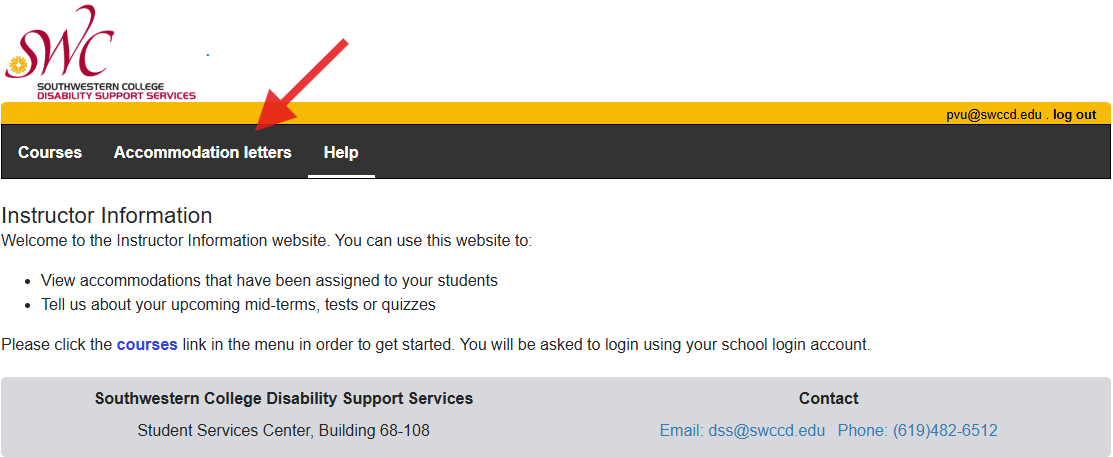
- Log in using your SWC credentials when prompted.
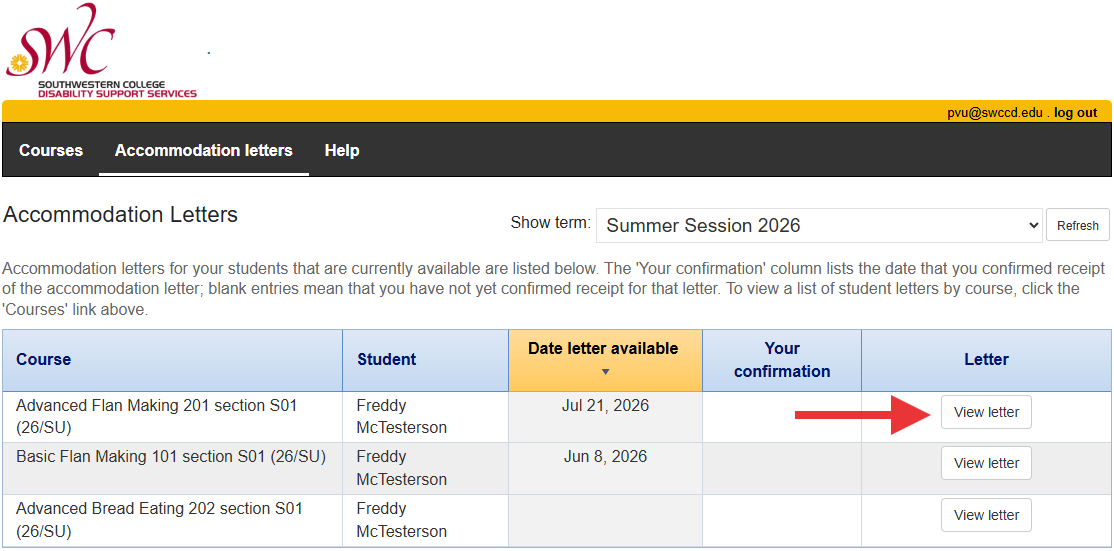
- Click on View letter for the specific student. You can organize the list by clicking on the column names
on the list.
- Click on the Review PDF Letter button to view the accommodation letter.
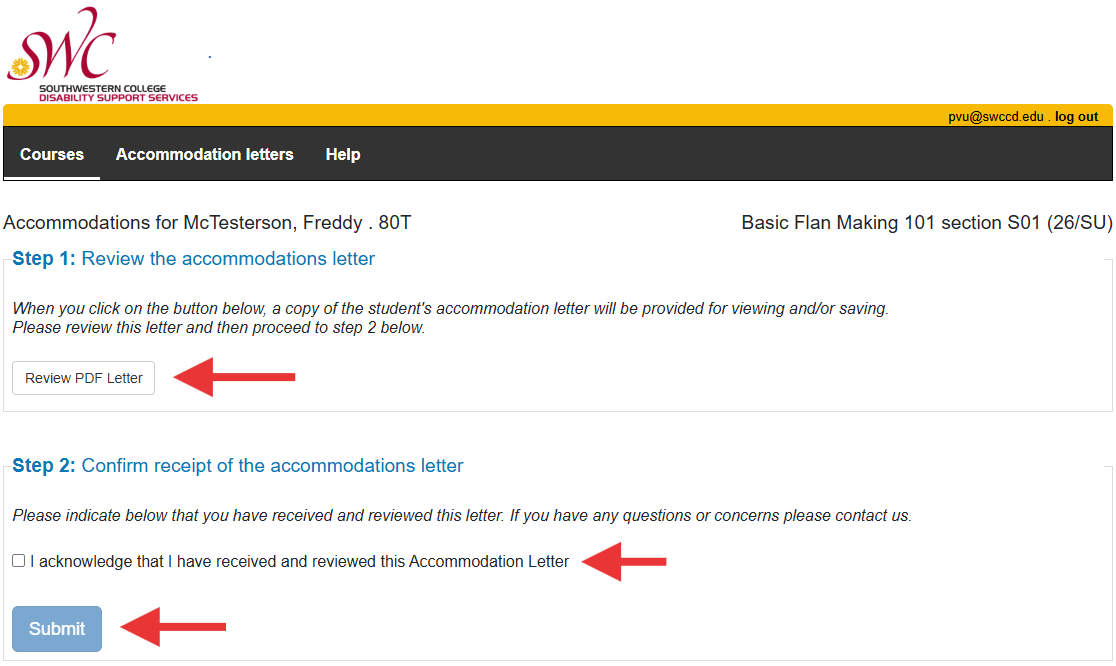
- Once you have reviewed the accommodation letter, click on the “I acknowledge…” checkbox and then click the Submit button.
NOTE: When a student requests to use their approved accommodations through the DSS Service Portal, instructors will receive an email containing a link to view their students’ accommodation letter.
Upon clicking the link, you may be prompted to log in using your SWC credentials.
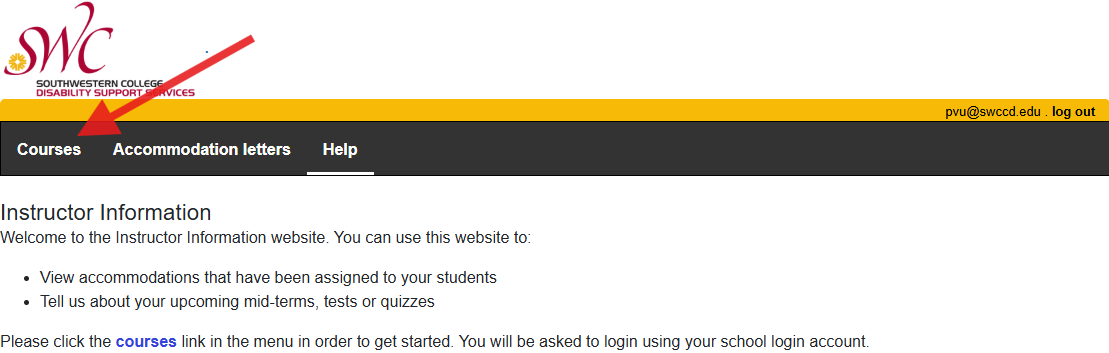
- Access the DSS Service Portal for Instructors
- Click on Courses
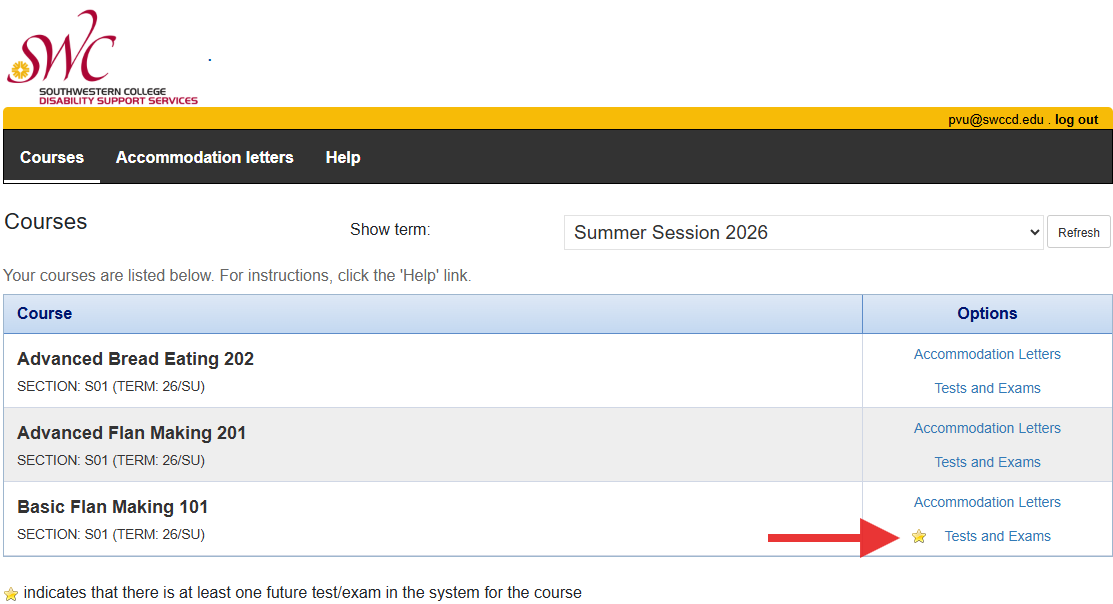
- Click on Tests and Exams for the class you wish to provide information for.
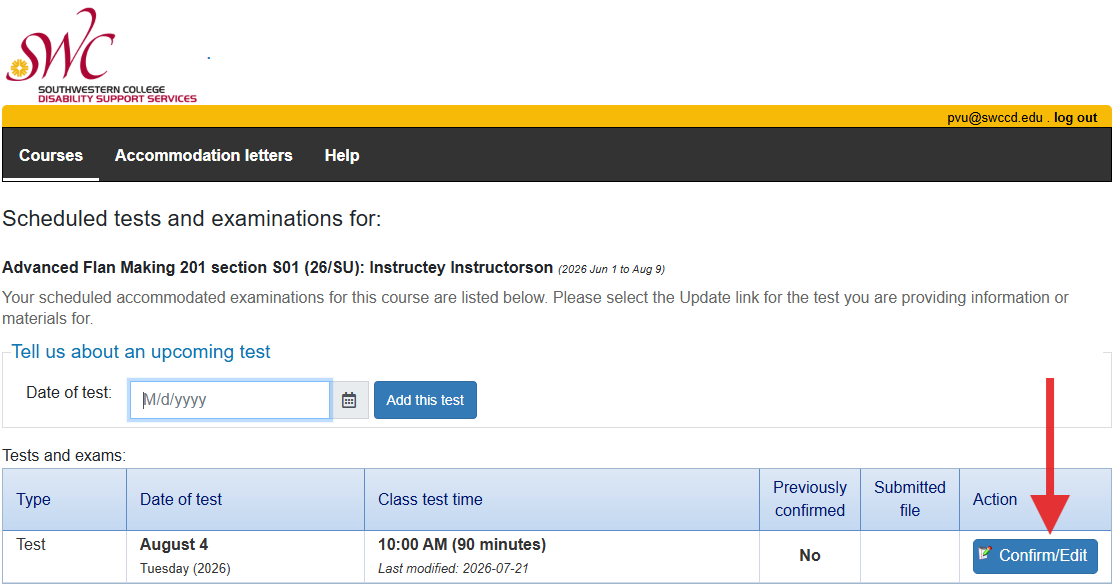
- Here you will find a list of tests that your students have scheduled through the DSS
Service Portal. Click on the Confirm/Edit button for the test you would like to provide
information for.
Note: Students are instructed to schedule their tests for the same date and time that the rest of the class will be taking the test.
For students whose tests fall outside of the DSS Test Proctoring Office’s operating hours, we will reach out and work with the instructor and student to find a suitable alternative time to schedule the test. - Follow the step-by-step instructions on providing information about your test.
- You can elect to upload your test securely to our portal or hand-deliver it to the DSS Test Proctoring Office, Building 26-102 (or the Student Services desks for HECs).
Note: The DSS Service Portal will automatically send an email reminder to instructors to submit test information. This is usually done six days prior to the scheduled test date, as well as the day before the scheduled test date.
Question: Do I need to keep checking the portal for new accommodation letters or test requests?
Answer: No. The DSS Service Portal will send an email notification to your SWC email address whenever a student submits their accommodation letter or six days before (and also a day before) a test is scheduled for your class. Depending on your class size, you may see many email notifications at the beginning of the semester.
Question: I teach multiple classes and sections of the same class. Do I need to provide test information for every single section?
Answer: The DSS Test Proctoring Office is more than happy to work with you to apply the same set of testing information across multiple sections without having to manually input them into every individual section. Please reach out to them at dssproctor@swccd.edu.
Question: A student had scheduled an test at the wrong time. What do I do?
Answer: Students should be scheduling their tests to start at the same time that the class will be taking the test. If there is a conflict between a student test time (extended time accommodations included) and another class or the operation hours of the DSS Test Proctoring Office, the DSS Test Proctoring Office will reach out to you to see if an alternate test time is possible. You can reach out to the DSS Test Proctoring Office at dssproctor@swccd.edu.
Question: My class is scheduled outside of the DSS Test Proctoring Office's operation hours. My students are not able to schedule their tests through the portal. How can these be scheduled?
Answer: The DSS Test Proctoring Office can help you schedule those students within our operating hours. Please reach out to them at dssproctor@swccd.edu.
Question: A student brought a Test Accommodation Request Form (TARF) to me for an upcoming test. Do I fill this out?
Answer: You can, if you would like. When they submit the form to our DSS Test Proctoring Office, we will recommend that they work with our High-Tech Center to help them schedule tests in the portal in the future.
Question: What if a student updates their accommodation letter through the DSS Office. How will I be informed?
Answer: For any modifications to a student's approved accommodations, the student is responsible for informing the instructor and discussing any impacts that the new accommodations may have on expectations for the coursework.